1. Confirm which machine actually runs FXServer
Start the intended server and keep its console or txAdmin view available. Confirm the game endpoint and port from its configuration or hosting panel. The connection command belongs in the FiveM game client, not a Windows terminal or the server console.
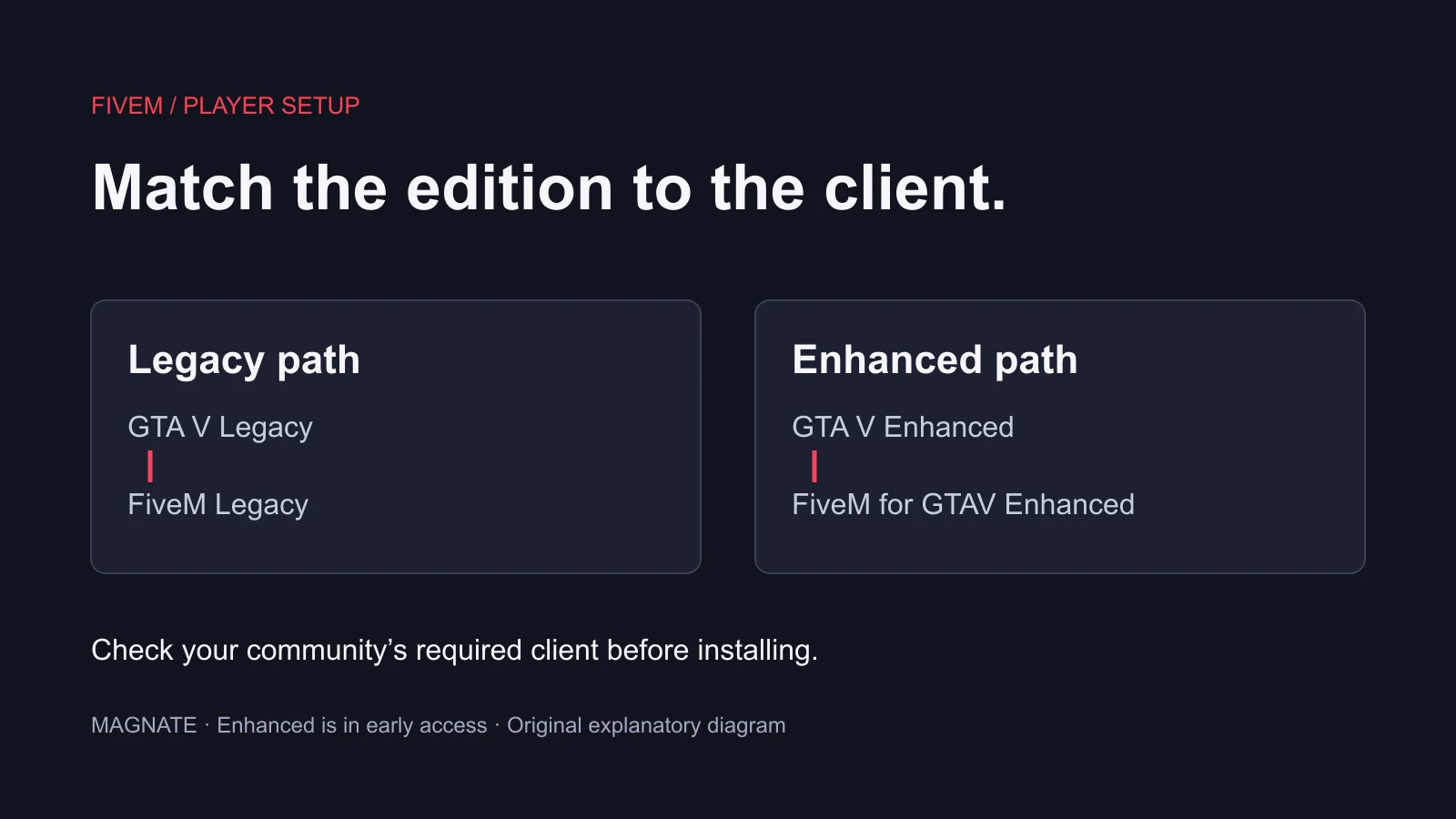
Check the client and server edition as part of the baseline. A local connection attempt cannot resolve an unsupported edition combination. If the server is inside a virtual machine or container, distinguish that environment from the PC running the game client: reaching the host may require a mapped or published endpoint. The same physical computer does not make separate network environments identical.
2. Join from the same PC using F8
The Cfx console-command reference documents F8 and connect with an address and port. For an ordinary same-PC setup using game port 30120, enter the command below and press Enter. If your configuration uses a different port, substitute it.
127.0.0.1 is an IPv4 loopback address. It refers back to the connecting host; giving it to a friend makes their client try their own machine. RFC 1122 defines the loopback address range as internal to a host.
connect 127.0.0.1:301203. Join from another PC on the same LAN
On a Windows server PC, open Command Prompt and run ipconfig. Microsoft documents that this displays IP addresses and other network configuration for the adapters. Identify the IPv4 address for the active connection to the local network you are using. A disconnected adapter or a different virtual network is not necessarily the route your second PC can reach.
Then open F8 on the second PC and use the host’s actual LAN address with the game port. The sample address below is illustrative; replace it with your server PC’s address. Do not use the second PC’s own address or assume that every device sharing a Wi-Fi name can communicate under the network’s access policy.
Windows Command Prompt on the server PC:
ipconfig

FiveM F8 console on the second PC — replace the sample address:
connect 192.168.1.50:30120
4. Keep listening addresses and player destinations separate
The Cfx vanilla setup documentation shows TCP and UDP game endpoints using 0.0.0.0:30120. In that configuration, 0.0.0.0 is a listening address, not an address to send to players. Review your actual endpoint configuration rather than adding duplicate lines or substituting the administration-panel port.
Use the following address checklist to keep the contexts straight. It is an explanation of connection targets, not a claim that your firewall or router is already configured.
| Where the client runs | Connection target | Common mistake |
|---|---|---|
| Same host network environment as FXServer | 127.0.0.1 plus the configured game port | Using the txAdmin browser address |
| Another device on the local network | The server host’s reachable LAN address plus game port | Using 127.0.0.1 on the second PC |
| Outside the local network | The server’s published public endpoint or join link | Sending a local-only address to a remote friend |
| Server listening configuration | Review endpoint_add_tcp and endpoint_add_udp settings | Using 0.0.0.0 as a player destination |
5. Use info.json as one diagnostic, then test joining
The Cfx server-issues guide describes checking the server’s info.json endpoint. On the server PC, the example below checks the local HTTP response for port 30120. From the second PC, substitute the host’s LAN address; for public access, test the intended public endpoint from outside the local network.
A JSON response is useful evidence about that request. It is not a successful game session and does not prove every required network path or resource works. Compare it with the F8 connection result and the server’s logs at the same time.
http://127.0.0.1:30120/info.json6. Diagnose the first failing connection boundary
If same-PC joining fails, first compare the running server, game port, startup errors and configured client/server edition. If same-PC works but the second LAN device fails, investigate the listening interface, local firewall and network access policy. If LAN access works but remote access fails, review the public endpoint and the relevant router or host network configuration.
Make one documented change at a time and repeat the same test. Keep firewall changes specific to the intended service and follow the operating-system, router or hosting provider instructions. A successful local test does not establish that public forwarding works; a public server-list entry is also a different observation from joining successfully.
Record the client location, target address type, game port, timestamp, exact error and corresponding server log. Keep credentials out of public reports. If a wider incident appears possible, use our FiveM status guide. For a clean installation baseline, use the server setup guide; for network and maintenance responsibilities on rented infrastructure, use the hosting guide. These steps concern current GTA V/FiveM, not GTA VI server support.
Questions, answered.
Can my friend join using 127.0.0.1?
Not to reach your PC. Loopback refers to the connecting machine. Use your reachable LAN address for the appropriate local-network setup or the published public endpoint for remote access.
Is the txAdmin address the FiveM game address?
The browser administration endpoint and the game endpoint serve different purposes. Use the configured game endpoint in the FiveM client.
Does info.json working mean players can join?
No. It confirms a response to that HTTP request. Test the actual game connection and relevant player workflow as well.
Sources & editorial notes
Source review: November 7, 2026. Platform announcements can change. This guide separates published facts from Magnate’s original analysis and preparation advice.
- Cfx — Client console commands Official F8 console, connect and disconnect syntax.
- Cfx Documentation — Server issues Direct connection, external reachability and server-list visibility checks.
- Cfx — Vanilla FXServer setup Windows/Linux installation paths and current platform caveats.
- Microsoft Learn — ipconfig Displays network configuration and adapter IPv4 addresses.
- RFC 1122 — IPv4 loopback addressing Defines the loopback range as internal host addresses.
Published by an independent editorial brand. Read our editorial standards.