Start with the official media library
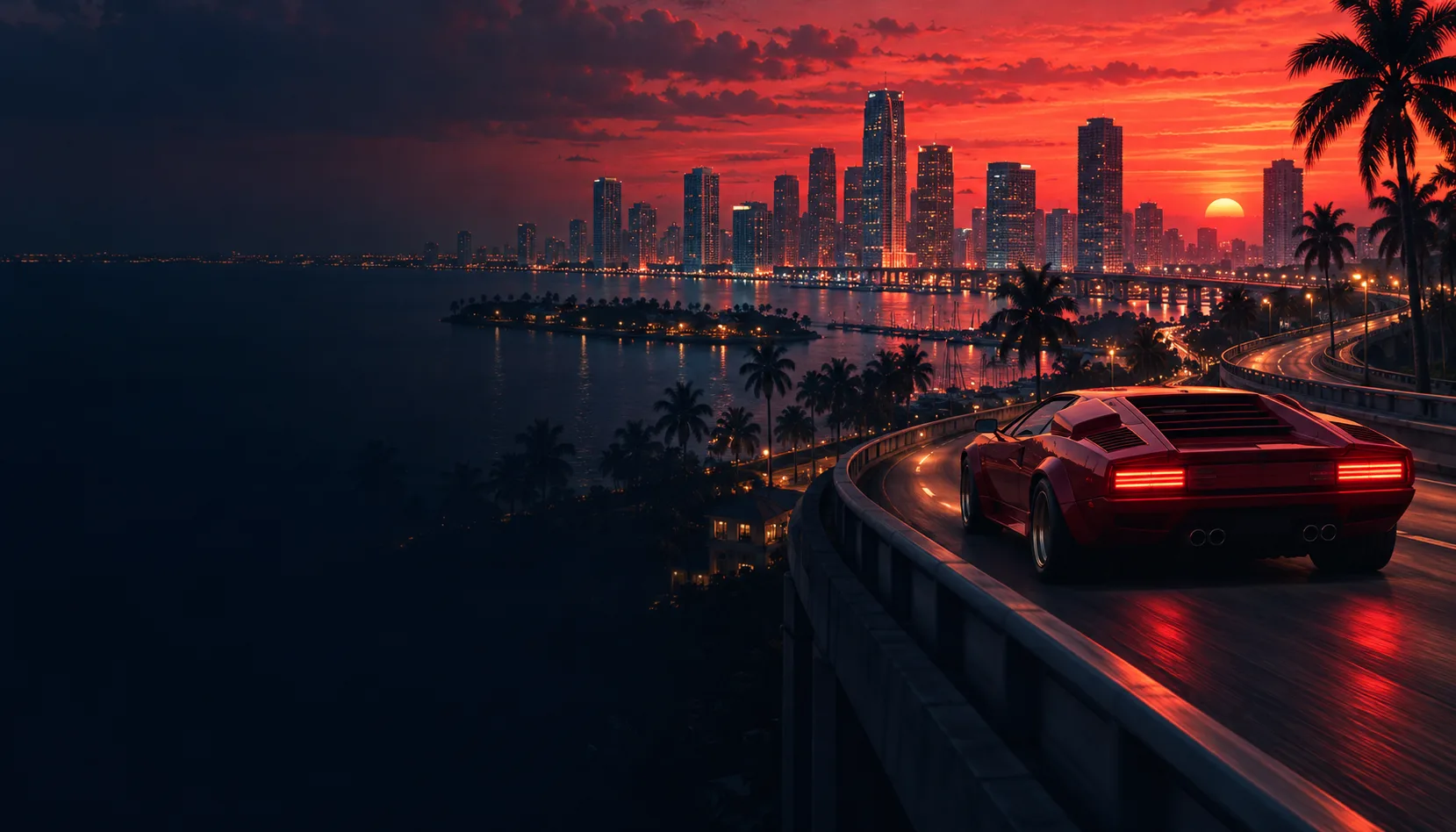
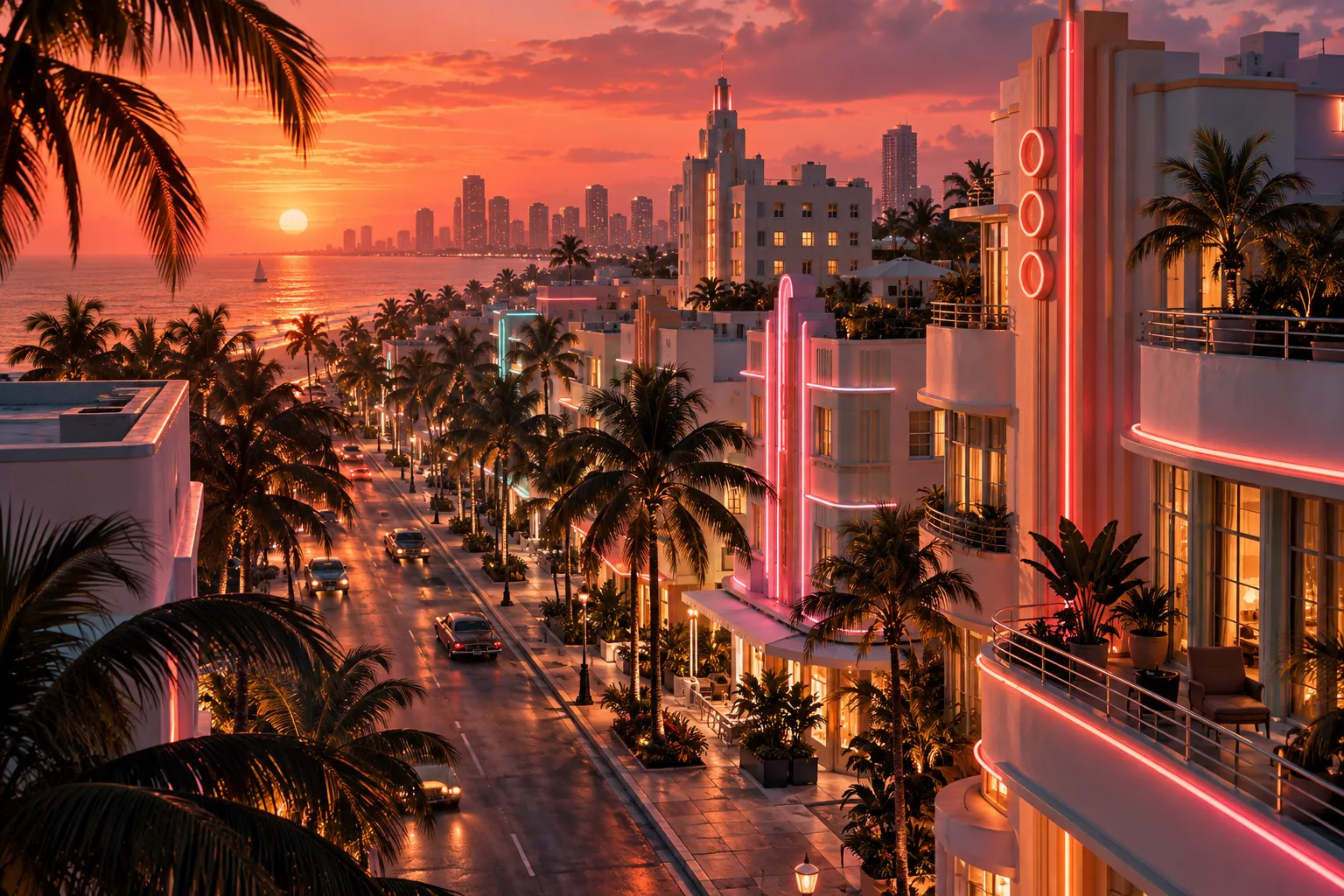
Rockstar’s Media page is the source for its downloadable GTA VI imagery. It offers category views and download collections. A screenshot and a wallpaper serve different purposes: a scene documents a reveal, while artwork may offer a composition better suited to a background.
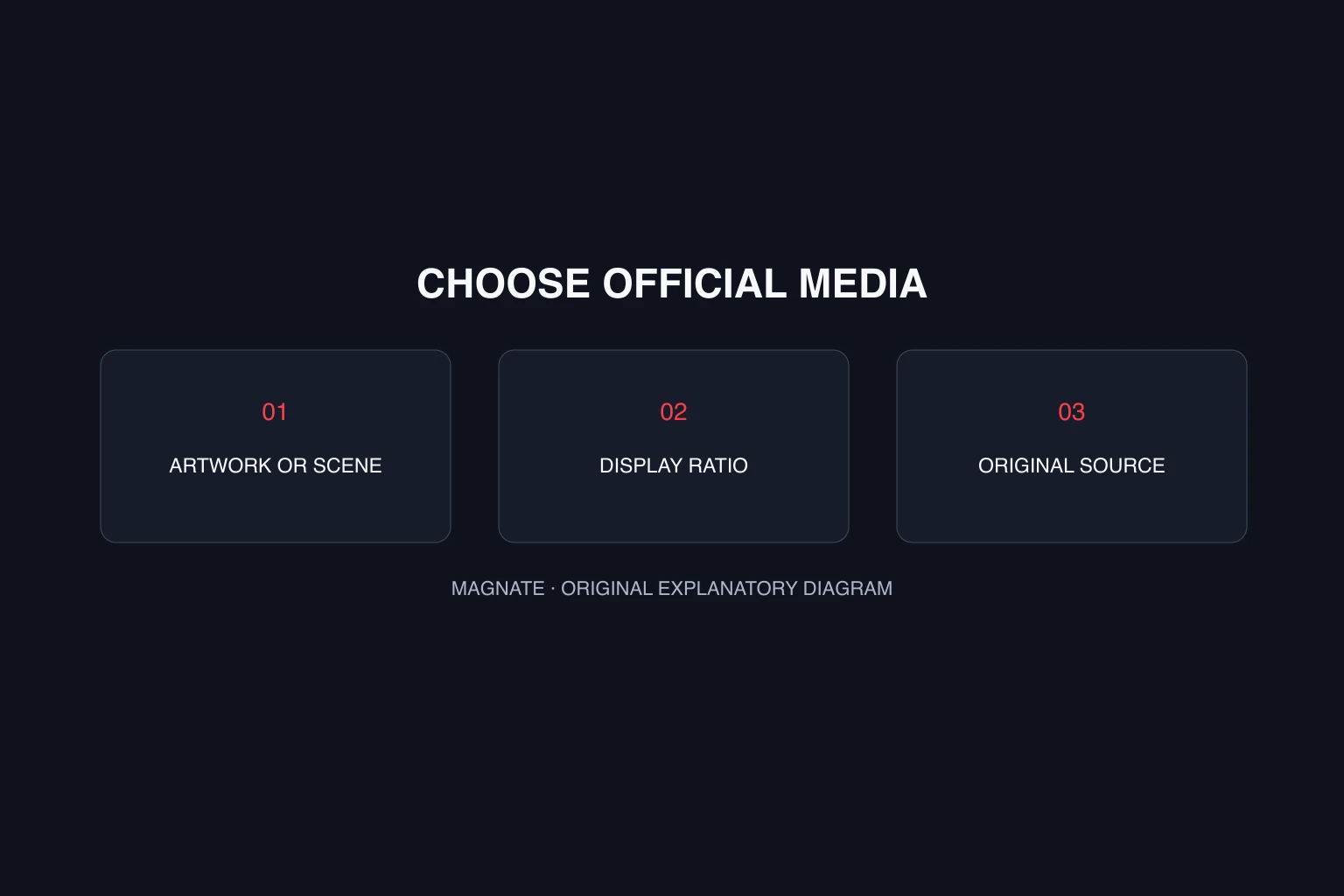
Choose the category before searching for a specific picture. This avoids confusing fan art, an AI illustration or an edited trailer frame with an official image. Magnate’s own explanatory diagrams are labeled separately and are not game screenshots.
| You need | Collection | Selection check |
|---|---|---|
| Phone or desktop background | Artwork & Wallpapers | Available size and crop |
| A revealed location or character scene | Screenshots | Official subject label |
| Moving footage | Videos or Clips | Original release and video title |
| Edition-specific promotional imagery | Edition benefit collections | Edition context rather than assumed base-game content |
Choose a wallpaper that fits your display
Compare your display’s width-to-height ratio with the image. A wide desktop image will lose much of its sides when cropped into a tall phone background. If the artwork entry offers a portrait size, start there. Preserve the original file so you can adjust the crop again.
For example, a 1920 × 1080 display has a 16:9 ratio. A 1080 × 1920 phone background has a 9:16 ratio. Those are illustrative display dimensions, not a claim about the dimensions of every Rockstar download. Fitting the wide image into the tall frame preserves everything but leaves empty space; filling the frame crops it.
Preview the result with your normal icons and lock-screen clock. Keep faces and important lettering away from those overlays. Use a small crop adjustment before adding heavy edits that could obscure the original composition.
Keep screenshots attached to their context
Save the subject label and source URL with a downloaded reference. A location image can lose its identity when reposted as an unlabeled crop. For regional references, use Only in Leonida and its destination profiles alongside the media library.
Do not treat one image as a full specification of an activity, vehicle or performance mode. If you are documenting a reveal, describe what is visible and link to the original collection. Reserve claims about controls, rewards or frame rates for evidence that actually demonstrates them.
Download a background without unnecessary installers
Use the download option for the selected image or collection. A wallpaper does not need a game launcher, a browser extension or access to your account. Keep image downloads separate from offers claiming to install or unlock GTA VI.
A downloadable promotional asset is also different from ownership of the game or a blanket license for commercial reuse. Keep attribution and review the applicable rights before using imagery in merchandise or paid creative work. For personal display setup, choose your crop locally and keep an untouched original.
Questions, answered.
Where can I get official GTA 6 wallpapers?
Open Rockstar’s GTA VI Media page and choose Artwork & Wallpapers. Check the sizes offered for the selected item.
Are screenshots and artwork the same thing?
No. Rockstar places them in separate collections. Preserve the original category and caption when using an image as a reference.
Should I stretch a desktop wallpaper to fit my phone?
Choose an appropriate portrait size where available. Otherwise crop or fit the original while preserving its proportions.
Sources & editorial notes
Source review: October 5, 2026. Platform announcements can change. This guide separates published facts from Magnate’s original analysis and preparation advice.
- Rockstar Games — GTA VI Media Official categorized downloads for imagery, artwork and video.
- Rockstar Games — Only in Leonida Official people and places in the GTA VI setting.
Published by an independent editorial brand. Read our editorial standards.